Tutorials • Webuzo
Changing the File Manager password in the Webuzo admin panel
Learn how to change the File Manager password in the Webuzo admin panel by following the simple steps in this tutorial.
Views 1052Updated 11 zilePublished on 17/08/2017by Florin P.
⚠️ Note: This article contains outdated or no longer relevant information. Certain instructions, commands, or configurations may no longer work correctly. For updated solutions, check the recent documentation or contact the support team.
Introduction
- In this tutorial, we will show you how to change the File manager password in the Webuzo administration panel.
Requirements
- Admin panel management details of Webuzo.
Steps
- After logging in to the Webuzo administration panel, we will go to the Security section and click on Change password.

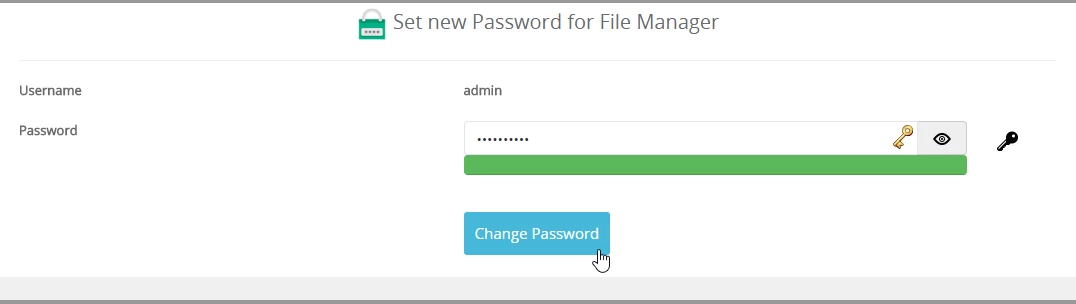
- On the next page, we will go to the section Set new password for File manager, where we can configure the desired password for the File manager.
- We will be able to change only the password, not the user; it will remain admin.
- This operation will be completed by clicking on Change Password.