Tutorials • cPanel
Adding an email autoresponder in cPanel
cPanel allows setting an automatic response for any received message for any email account created in the panel.
Views 1012Updated 2 aniPublished on 24/09/2017by Cătălin A.
Introduction
This article explains the steps that need to be followed to set up an automatic reply message. This can be useful if you are on vacation or unavailable, or if you have a generic message that you wish to send from a support email address.
Requirements
- a cPanel account
- an email address on that cPanel account
Steps to Follow
- after logging in to the cPanel control panel, in the interface that will be displayed, we look for the section "EMAIL ADDRESS", and there we click on "Autoresponders".

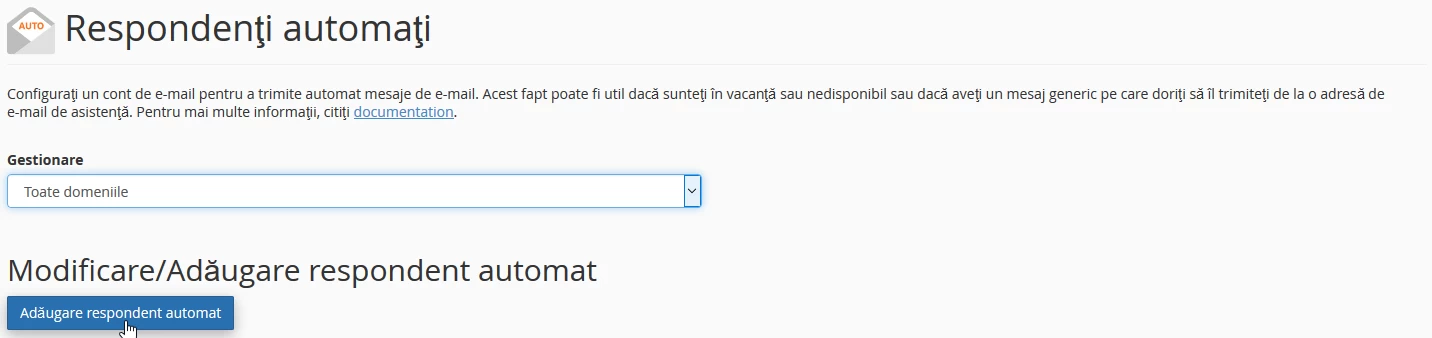
- in the window that will appear, we will click on ''Add automatic respondent''
- In the following window, we will have several fields to fill in as follows:
- Character set - defaults to utf-8
- Interval - The number of hours to wait between two responses to the same email address, in case multiple emails are received from the same address within the set interval.
- Email address - the name of the address for which the autoresponder is created
- Domain - the domain we want to create, in case the hosting package manages multiple domains
- From - the name of the person from whom the automatic response is sent
- Subject - the subject of the message
- Body - the content of the message
- Start - selecting the moment when the autoresponder becomes active
- Stop - selecting the time to stop the autoresponder
Note: for the START/STOP options, exact intervals can be set during which the automatic response becomes active or stops by checking the 'Customization' option
- after correctly filling in all the fields, click on ''Create/Modify''
