Tutorials • Apps
Launching a NodeJS application on shared servers with cPanel
Launch your NodeJS application on shared servers with cPanel! Step by step guide for setup, including configuring the file and environment variables.
2
Views 3881Updated 2 aniPublished on 25/06/2021by Florin P.
Introduction
- NodeJS is a runtime environment that allows the use of the Javascript language on the server side (backend).
Requirements
- To leave a NodeJS application we will need the cPanel access data.
Steps
- As an example, we will use a simple javascript code file, which we will upload to the hosting.
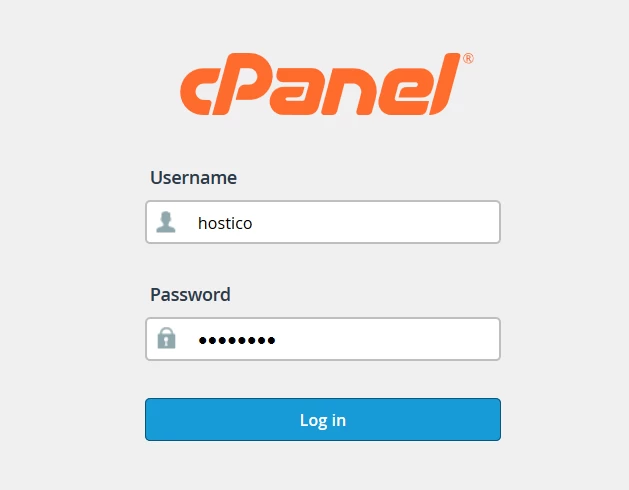
- We access the cPanel account and log in with the username and password found in the email with the administration details.
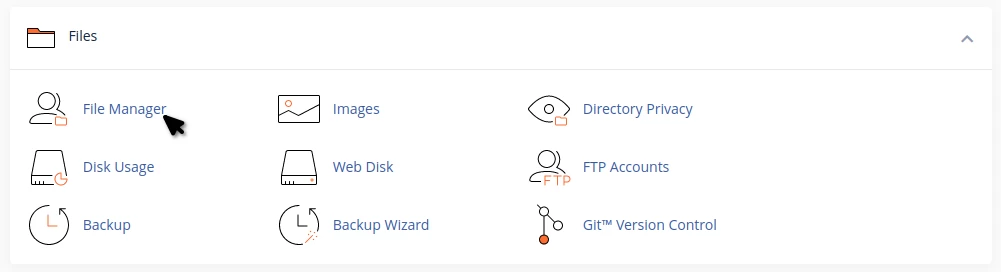
- Next, we will access File Manager from the Files section.
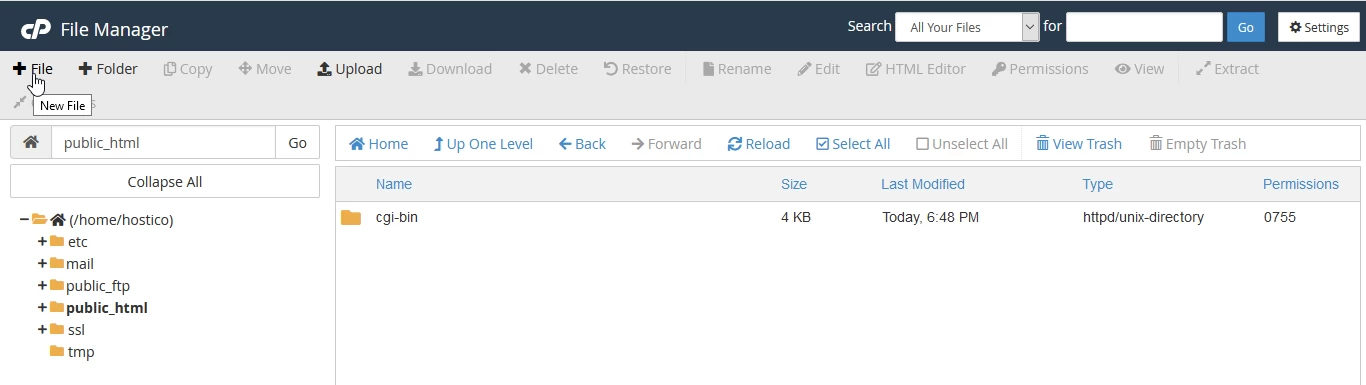
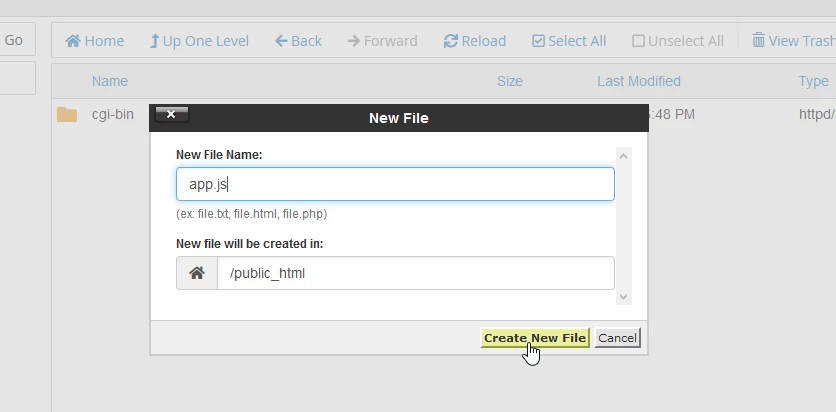
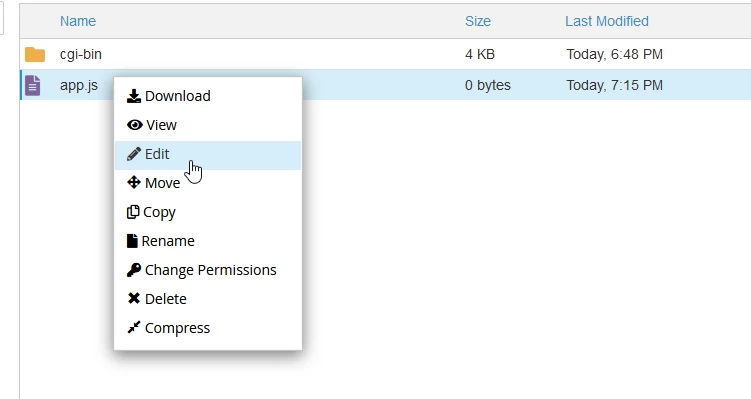
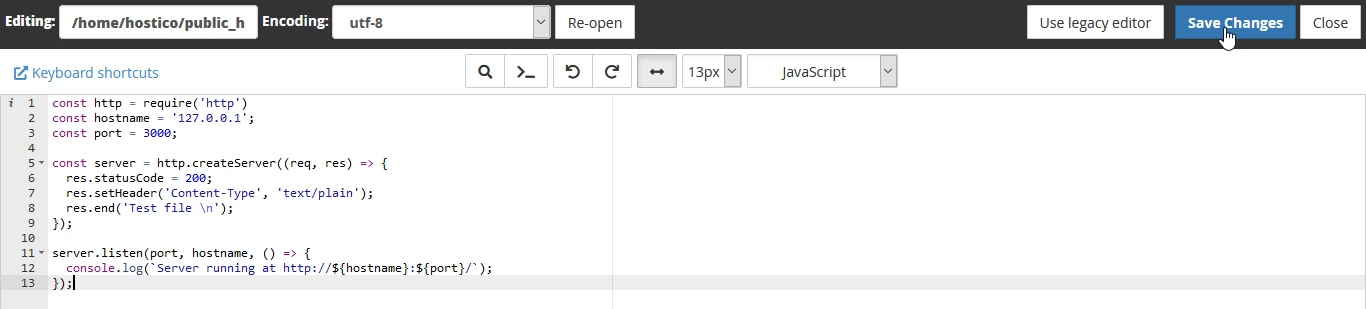
- Here we will create the file named app.js which we will edit and add the code below:
const http = require('http');
const hostname = '127.0.0.1';
const port = 3000;
const server = http.createServer((req, res) => {
res.statusCode = 200;
res.setHeader('Content-Type', 'text/plain');
res.end('Test file \n');
});
server.listen(port, hostname, () => {
console.log(`Server running at https://${hostname}:${port}/`);
});
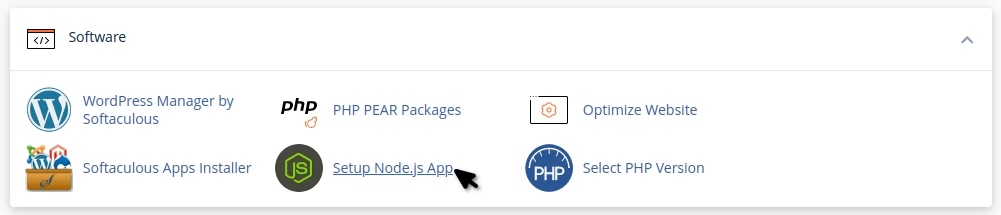
- To set up the NodeJS interpreter, we will go to the Software section and click on Setup Node.js App
- In the page that opens, we will click on the CREATE APPLICATION button.

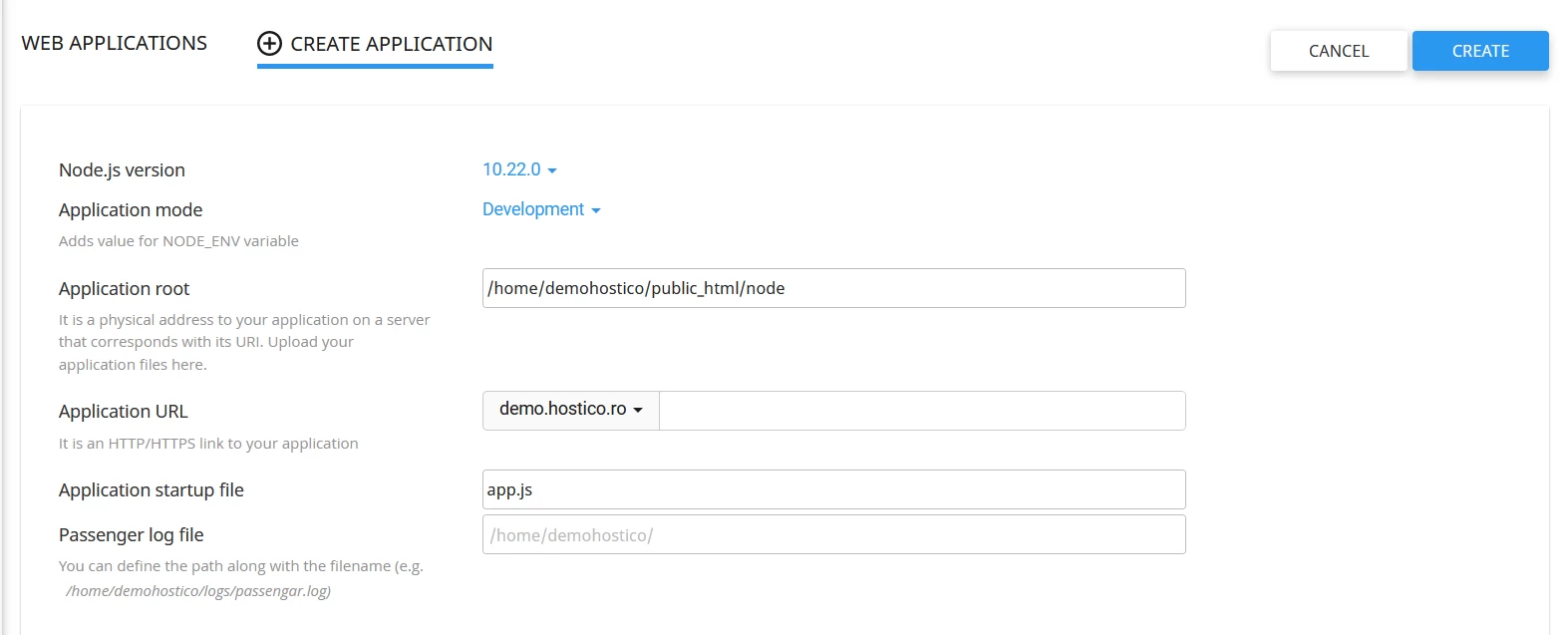
- Here we will be able to modify the following fields:
-Node.js version - The NodeJS version we want to use
-Application mode - In what mode we want to launch the application, development or production
-Application root - The path to the application's entry file
-Application URL - The address/URL on which the application will run. You can customize the address or use the domain directly
-Application startup file - The name of the application's entry file
-Passenger log file - Defining a log file where the web server will save any errors or warnings
-Environment Variables - If you want to add variables, click on Add Variable to specify a name and a value. - After defining all the fields, we will click the Create button to launch the application.
- Immediately after launch, the NodeJS application will be accessible at the address defined during the setup.
- In the interface Setup Node.js App, the newly launched application will appear (as well as others that we will add over time). In this list, we will have the option to edit the settings, delete, start, or stop the applications.
